geohernandez
Menu
  • HOME
  • ABOUT
  • CONTACT ME
  • WORK WITH GEO
    • Data Specialist
    • Speaker Events
    • Resume
  • English
    • English
    • Español
Menu

Getting Started with Snowflake’s Snowpipe for Data Ingestion on Azure

Posted on May 20, 2025May 20, 2025 by geohernandez

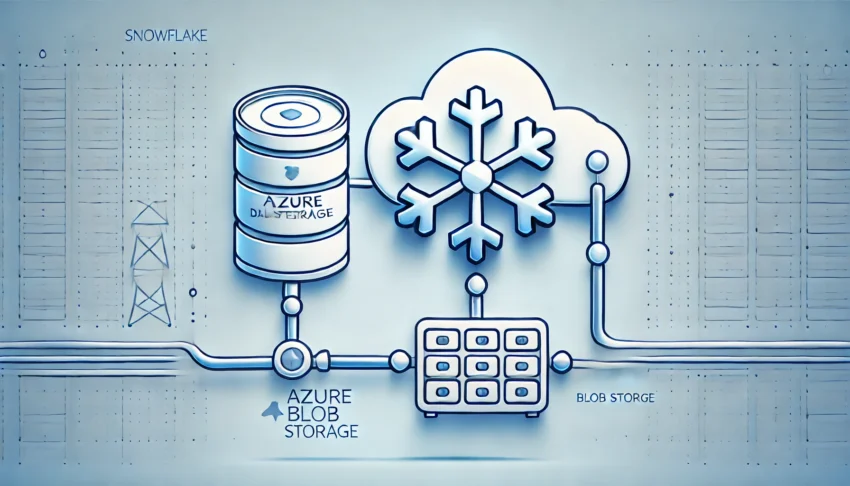
In this post, you’ll learn how to set up and configure all the necessary components to enable Snowflake’s Snowpipe for automated and reliable data ingestion using Azure. We’ll walk through how to configure Azure Blob Storage, set up Event Grid, and integrate everything step by step to allow Snowflake to seamlessly ingest data from your Azure cloud storage.

Continue reading “Getting Started with Snowflake’s Snowpipe for Data Ingestion on Azure”


Quick Guide: BigQuery Service Account Setup Using gcloud

Posted on May 2, 2025May 17, 2025 by geohernandez

In this post, I will guide you through the basic steps for defining a new Service Account and granting different roles on BigQuery through the cloud. It is a common choice to work at the command line and manage development workflow in a terminal window.

Read more: Quick Guide: BigQuery Service Account Setup Using gcloud

Setting Up Your Environment with BigQuery Sandbox

The easiest way to follow along with this guide is to use your BigQuery environment.
If you’re new to BigQuery, the BigQuery Sandbox is a great place to start. It’s a free, no-setup-required option that provides limited but sufficient capabilities to complete all the steps in this guide. It allows you to explore BigQuery without incurring any costs.

To get started, visit: https://tinyurl.com/mr27p7cu

You’ll need a Google account to access the sandbox. If you don’t already have one, you’ll need to create it to authenticate with Google Cloud services.

Note: This guide does not cover the steps to set up the BigQuery Sandbox, but the process is simple and well-documented in the linked article. By the end of that setup, you should have access to a functional BigQuery environment with some usage limitations, as outlined by Google.

Here, an example:

Activating Google Cloud Shell and first commands on gcloud

You will have multiple options for executing the gcloud command line, including downloading the gcloud CLI from this link: https://tinyurl.com/28ahf452 . However, we will use Google Cloud Shell, an integrated component that you can access from BigQuery. You have to go to the top right side of your UI and click on the following icon:

Immediately, it should show you

Defining the project

To start interacting with the project, we must set up with the following command

1
gcloud config set project [PROJECT_ID]

The Project_Id can be obtained from BigQuery in the next section, inside the UI

Once you click on the previous section, it should display a window where you can pick up the required project. In my case, due to the Sandbox configuration, I only have one

With this information, you could set up the project and continue with the following commands which are intended to create a new Service Account and grant some roles.

Creating a new Service Account

A service account is useful for securely automating access to Google Cloud resources without requiring user interaction. It is recommended that a naming convention at the company level be followed and adhered to. In this example, we are going to create a new one called demo360.

The following code performs two key actions: it creates the service account and assigns it the roles/bigquery.user IAM role to grant appropriate BigQuery access.

1
2
3
4
5
6
7
8
9
-- Create Service Account
gcloud iam service-accounts create demo360-service \
  --description="Service account for BigQuery access" \
  --display-name="geolab-bq-service-account"
 
-- BigQuery Grant (User)
gcloud projects add-iam-policy-binding hazel-champion-349706 \
  --member="serviceAccount:demo360-service@hazel-champion-349706.iam.gserviceaccount.com" \
  --role="roles/bigquery.user"

At this point, we can get the JSON file, which contains the detailed information related to the key associated with the service account. Execute the following command:

1
2
gcloud iam service-accounts keys create key.json \
  --iam-account=demo360-service@hazel-champion-349706.iam.gserviceaccount.com

It would show you a message like this:

To download the generated key.json, you should go to the BigQuery Cloud Shell Terminal and three dot, and inside it, go to the Download option and explore the file created and stored in your user repository.

Assigning a new role and listing the roles of the Service Account

The final part of this article consists of granting a new role to the Service Account and listing the roles assigned to it.

1
2
3
4
5
6
7
8
9
10
-- BigQuery Grant (Access jobUser)
gcloud projects add-iam-policy-binding hazel-champion-349706 \
  --member="serviceAccount:demo360-service@hazel-champion-349706.iam.gserviceaccount.com" \
  --role="roles/bigquery.jobUser"
 
-- Get the roles associated to a Service Account
gcloud projects get-iam-policy hazel-champion-349706 \
  --flatten="bindings[].members" \
  --filter="bindings.members:demo360-service@hazel-champion-349706.iam.gserviceaccount.com" \
  --format="table(bindings.role)"

Conclusion

In this guide, we covered the essential steps to create a service account and assign BigQuery roles using the gcloud CLI. Using the BigQuery Sandbox allows you to follow along for free, without complex setup.
This approach supports secure, automated access to your data projects. With these basics in place, you’re ready to start building on BigQuery.

The Art of Data Modeling in AI times

Posted on March 11, 2025March 11, 2025 by geohernandez

In the age of artificial intelligence, where powerful algorithms analyze colossal datasets in seconds, it’s tempting to think that machines can solve every data challenge. AI may be capable of learning patterns, uncovering insights, and making decisions, but it still relies on one critical foundation: structured, well-modelled data. Behind every intelligent AI system is a carefully crafted data model that reflects technical precision and an intricate understanding of business needs.

Read more: The Art of Data Modeling in AI times

This process of crafting data models, often underestimated, is as much an art as it is a science. It requires creativity, intuition, and a deep connection to the business’s unique challenges. In this article, we explore why, even in AI-driven times, data modelling remains a creative and vital process that fuels innovation.

Data Modeling: The Blueprint of Intelligence

At its core, data modelling is the process of creating a conceptual representation of how data is organized, stored, and connected. It involves defining entities, attributes, and relationships in a way that mirrors the real-world operations of a business. While this might sound purely technical, the reality is far more nuanced.

Data modelling is not just about designing tables or writing database schemas; it’s about understanding the essence of a business. What are its pain points? What are the key questions it needs to answer? This understanding forms the foundation of the model, making the role of a data modeller closer to that of a storyteller—someone who translates complex business realities into a language that machines can understand.

Why Data Modeling is Still Relevant in AI Times

AI systems are incredibly powerful, but they are not infallible. The quality of their outputs depends heavily on the quality of the inputs—and that’s where data modelling shines.

  1. AI Thrives on Structure
    AI models, no matter how sophisticated, cannot work efficiently with messy, unstructured, or ambiguous data. A strong data model ensures that data is clean, consistent, and aligned with the specific needs of the AI application. Without this foundation, even the most advanced algorithms falter.
  2. The Human Element
    While AI excels at pattern recognition, it lacks the intuition and creativity to understand the deeper context of business requirements. Only humans can engage with stakeholders to uncover nuances, challenge assumptions, and anticipate future needs—elements that are vital in crafting a meaningful data model.
  3. Scalability and Adaptability
    The pace of change in AI and data technologies is relentless. A well-thought-out data model anticipates growth and evolution, ensuring that systems can scale without chaos. This foresight is not something AI can handle on its own; it requires human creativity and strategic thinking.

The Art of Gathering Business Requirements

One critical aspect of data modelling is translating business requirements into structured frameworks. While this process often requires creativity and collaboration, having the right tools can greatly enhance productivity.

During my journey in data modelling, I’ve found tools like QuickDatabaseDiagrams invaluable for creating clear and efficient database schemas. QuickDatabaseDiagrams offers a simple, text-to-diagram approach, allowing you to rapidly draft and visualize data models. This tool not only speeds up the modelling process but also ensures that the final design aligns with both technical and business needs.

One of the most underestimated aspects of data modelling is the process of gathering and interpreting business requirements. This step is where the magic happens—a mix of creativity, communication, and deep listening.

  • A Creative Dialogue
    Every business has a unique story to tell, and it’s the data modeler’s job to uncover it. This involves engaging with stakeholders across departments, asking probing questions, and teasing out hidden needs. Often, the real requirements are buried beneath layers of assumptions, and uncovering them is as much about intuition as it is about technique.
  • Bridging the Gap
    Data modellers act as a bridge between technical teams and business leaders. Translating abstract business goals into concrete data structures requires not just technical skill but also the ability to think creatively and empathize with diverse perspectives.
  • Balancing Creativity with Precision
    While the process is creative, it’s also grounded in logic and structure. A good data modeller knows how to balance these two worlds, ensuring the final design is both elegant and functional.

Challenges and Opportunities in the AI Era

  1. Dealing with Unstructured Data
    AI thrives on diverse data formats, including images, text, and audio. Data modelling now extends beyond traditional relational databases to encompass new paradigms like NoSQL and graph databases. This expansion requires modellers to think creatively about how to structure and connect unstructured data.
  2. Ethical Considerations
    As AI becomes more pervasive, data modellers play a critical role in ensuring ethical data practices. This includes designing models that avoid bias, respect privacy, and align with regulatory requirements.
  3. Leveraging AI for Modeling
    Interestingly, AI itself is starting to assist in data modelling. Tools powered by machine learning can suggest relationships, detect anomalies, and automate parts of the process. However, these tools are enablers, not replacements, for the human creativity and judgment that true data modelling requires.

Classic Books on Data Modeling That Never Go Out of Style 📚

Here are some timeless books on data modeling that continue to provide valuable insights, no matter how much the field evolves. These classics are a must-read for anyone serious about mastering data modeling:

https://www.kimballgroup.com/data-warehouse-business-intelligence-resources/books/

https://www.goodreads.com/book/show/29844855-data-lake-architecture

https://data-vault.com/data-vault-book-options

Conclusion: The Timelessness of Creativity

In an era where AI seems to dominate every aspect of technology, it’s easy to forget the human element that underpins it all. Data modelling, far from being a purely technical discipline, is a deeply creative process. It requires not just skill but also empathy, intuition, and vision.

As businesses continue to navigate the complexities of the AI age, the art of data modelling remains as relevant as ever. It is the invisible thread that connects business needs to technological possibilities, ensuring that AI systems are not just powerful but also purposeful. In the end, it’s not just about modelling data—it’s about modelling the future.

Integrating Azure Blob Storage with Snowflake: A Guide to Storage Integration and Staging Data

Posted on January 6, 2025January 6, 2025 by geohernandez

This article offers a comprehensive, step-by-step guide for integrating Azure Blob Storage with a Snowflake account hosted on AWS using storage integration. It covers key topics such as setting up permissions, creating storage integration, and configuring an external stage for efficient data loading and unloading. Through practical examples, you’ll learn how to seamlessly connect Snowflake and Azure, ensuring secure data transfers and leveraging Snowflake’s staging functionality to streamline data management across cloud platforms. This guide is designed to simplify the process and enhance the efficiency of cross-cloud data operations.

Read more: Integrating Azure Blob Storage with Snowflake: A Guide to Storage Integration and Staging Data

Initial configuration

In this post, I will not enter details about how to configure Azure Blob Storage, I would like to recommend this article. In my case, I defined a Container and some folders/files for this article as this:

Inside, I have defined three different folders with CSV files and GSV compression-type for use in the coming articles where I will continue exploring Data Engineering tasks in Snowflake. Let us follow with the first step for creating a new Database.

Note: Remember to use the ACCOUNTADMIN role for the next actions, basically it is the right role for defining the objects required.

Creating a new DB
PgSQL
1
2
3
CREATE OR REPLACE DATABASE SNOWPRO_COURSE;
 
USE DATABASE SNOWPRO_COURSE;

It is important to highlight that the following steps are a combination of actions into Azure and Snowflake, in case you need to reinforce them, I recommend reading this article.


Configuring Storage Integration

A Storage Integration simplifies the interaction between Snowflake and external cloud storage services (Azure, Amazon, GCP) by securely storing storage metadata. This setup allows seamless data exchange without requiring users to provide credentials during stage creation or data loading processes.

The integration retains key details like the storage provider, Azure tenant ID, and the blob storage location. Permissions for accessing these storage locations are granted by the cloud provider administrators to the automatically generated service principal. This method enhances security by eliminating the need for direct credential management.

The following code snippet shows you the storage integration structure:

1
2
3
4
5
6
CREATE STORAGE INTEGRATION <put_integration_name_here>
TYPE = EXTERNAL_STAGE
STORAGE_PROVIDER = AZURE
ENABLED = TRUE
AZURE_TENANT_ID = '<put_tenant_id>'
STORAGE_ALLOWED_LOCATIONS =('azure://<account>.blob.core.windows.net/')

To retrieve the tenant_id and storage account details, you’ll need to request them from your Azure Administrator. However, we’ll also guide you through the steps to locate this information on your own.

Getting Storage account details

For getting the tenant_id, you have different ways to get it. The first is simply go to the search bar and type Microsoft Entra ID, and once in there, go to Tenant ID and copy it.

The other option is to type in the search bar Tenant Properties and copy the Tenant Id and copy it.

To find the Storage Location, it is recommended to follow the next path:

Storage Accounts ==> Storage Account Name ==> Data Storage ==> Containers ==> Container Name ==> Setting ==> Properties

Applying the Storage Integration configuration (Grants)

At this point, we are ready to create the new Storage Integration, remember that is mandatory to use an elevated account role (AccountAdmin), here is the example:

At this point, we are ready to start the process of granting Snowflake access. First of all, write the command DESC INTEGRATION <Storage Integration Name> . Once you get the output, copy and paste in a browser the AZURE_CONSENT_URL value.

It redirects you to Azure Windows and after you accept the configuration, it finally redirects to the Snowflake page.

With the proper support of your Azure Administrator, it has to go to the Storage Account and once in there enter into the Access Control (IAM) option.

Click on the Add role assignment button and search for Storage Blob Data Contributor and add it.

After making your selection, click Next. In the Members section, it’s essential to search for the AZURE_MULTI_TENANT_APP_NAME. This value corresponds to the identity specified in the AZURE_MULTI_TENANT_APP_NAME property from the DESC INTEGRATION output. You only need to capture the portion of the string from the beginning up to the first underscore (_). For example, if the value is SnowflakePACInt12345_9876543210123, you should extract only SnowflakePACInt12345, ignoring everything after the first underscore.

At this stage, we’re finalizing the storage integration process. The remaining steps involve defining the Stage and exploring its functionality.

Defining a Stage and exploring some other options

The process of defining a Stage consists of a simple command, but it is required that you use the Storage Integration defined previously. More information about the definition of Stage for Azure can be found in this article.

1
2
3
4
CREATE STAGE my_azure_blob_int
STORAGE_INTEGRATION = <Puth the Integration name here>
URL = <BLOB Storage URL>
FILE_FORMAT = <File format name>;

Here is the companion code for this article.

1
2
3
4
5
CREATE STAGE my_azure_stage
  STORAGE_INTEGRATION = my_azure_integration
  URL = 'azure://labsnowflake.blob.core.windows.net/dblab/'
  FILE_FORMAT = (TYPE = 'CSV' FIELD_OPTIONALLY_ENCLOSED_BY = '"')
  COPY_OPTIONS = (ON_ERROR = 'CONTINUE');

After the compilation, we could verify that Stage is already created with the following command

1
SHOW STAGES;

It shows an output like this:

Finally, the acid test consists of listing all the files belonging to the Stage and its path defined, here is an example:

1
LIST @my_azure_stage;

Now that we have access to the files corresponding to our Blob storage, we can play with them, in the following code we are going to create a file format and use it together with our Azure stage for reading a CSV file and showing the output in Snowflake.

1
2
3
4
5
CREATE OR REPLACE FILE FORMAT CSVFORMAT_QUOTES TYPE = 'CSV' FIELD_DELIMITER = ',' FIELD_OPTIONALLY_ENCLOSED_BY='"' SKIP_HEADER = 1 ;
 
SELECT file.$1 as user_id, file.$2 as name, file.$3 review_count , file.$4 as useful, file.$5 as fans, file.$6 as average, file.$7 as joined_date
FROM @my_azure_stage/dataimports/reviews/users.csv (file_format => CSVFORMAT_QUOTES ) FILE
LIMIT 100;

Conclusion

This article walked you through the steps to connect Azure Blob Storage with Snowflake using storage integration. You’ve learned how to set up permissions, create a stage, and securely transfer data without needing to manage credentials. With these steps, you can now handle data loading and unloading more easily across platforms. Stay tuned for more data engineering and data architecture tips in future posts!

Continue reading “Integrating Azure Blob Storage with Snowflake: A Guide to Storage Integration and Staging Data”
  • 1
  • 2
  • 3
  • 4
  • …
  • 11
  • Next

Search for articles

Recent Posts

  • Getting Started with Snowflake’s Snowpipe for Data Ingestion on Azure
  • Quick Guide: BigQuery Service Account Setup Using gcloud
  • The Art of Data Modeling in AI times

Categories

  • Airflow (1)
  • Azure (6)
  • Azure DevOps (2)
  • Bash script (1)
  • Blog (1)
  • Cassandra (3)
  • Chronicles from the trenches (26)
  • Data Architecture (3)
  • Data Engineering (11)
  • DB optimization (2)
  • Events (2)
  • GIT (1)
  • MySQL (1)
  • Python (7)
  • Snowflake (3)
  • SQL Saturday (1)
  • SSIS (2)
  • T-SQL (5)
  • Uncategorized (2)

Archives

  • May 2025 (2)
  • March 2025 (1)
  • January 2025 (1)
  • October 2024 (1)
  • July 2024 (1)
  • May 2024 (1)
  • December 2023 (1)
  • November 2023 (1)
  • August 2023 (1)
  • June 2023 (1)
  • December 2022 (1)
  • November 2022 (1)
  • July 2022 (1)
  • March 2022 (1)
  • September 2021 (1)
  • May 2021 (1)
  • March 2021 (1)
  • February 2021 (3)
  • December 2020 (1)
  • October 2020 (3)
  • September 2020 (1)
  • August 2020 (1)
  • January 2020 (1)
  • August 2019 (1)
  • July 2019 (1)
  • June 2019 (1)
  • May 2019 (1)
  • April 2019 (1)
  • March 2019 (1)
  • November 2018 (3)
  • October 2018 (1)
  • September 2018 (1)
  • August 2018 (2)
© 2026 geohernandez | Powered by Minimalist Blog WordPress Theme